Tech
How to Customise Your Galaxy Watch 9 Face: A Step-by-Step Guide
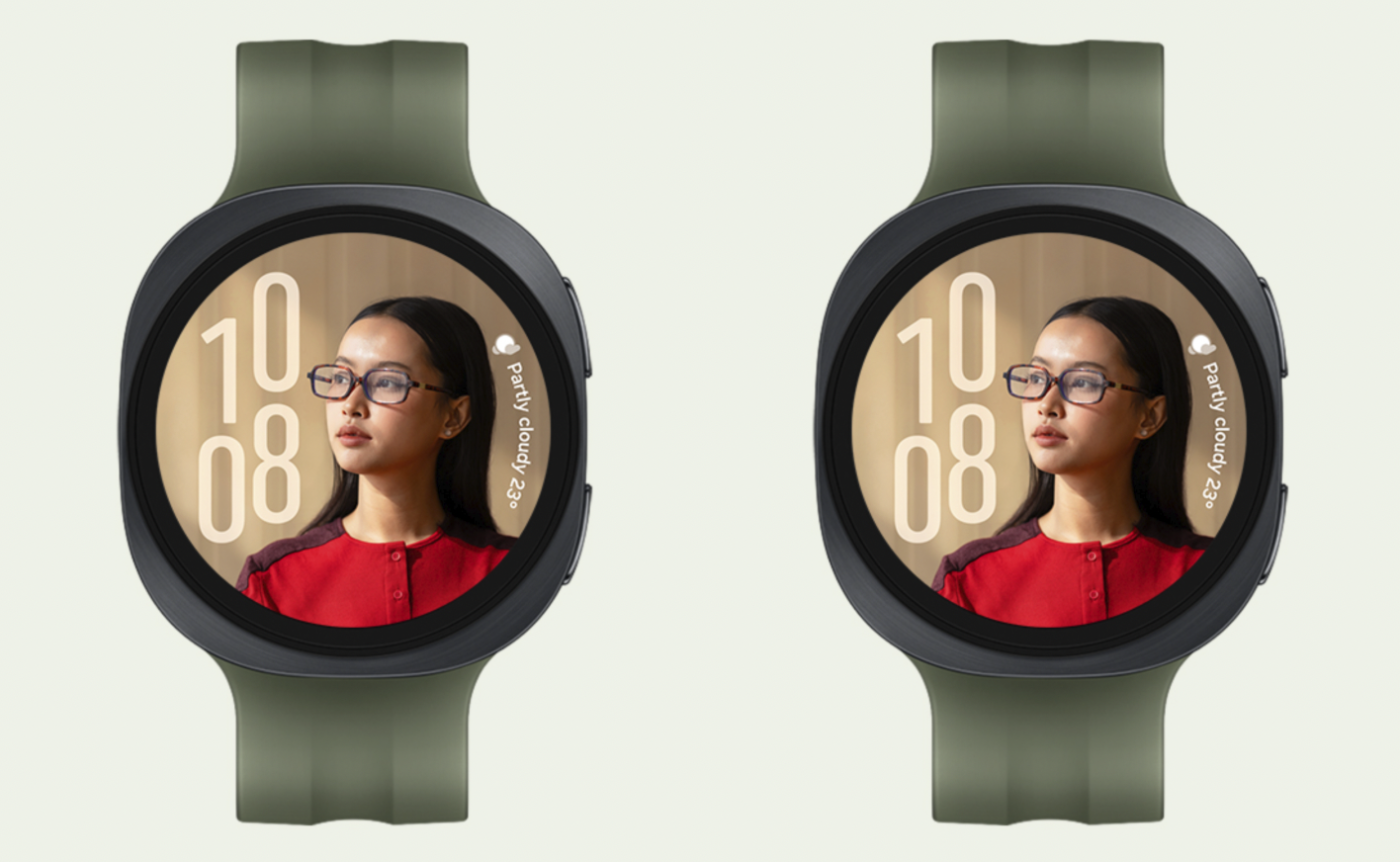
One of the most powerful features for personalising your Galaxy Watch 9 is the ability to change its watch face. With a wide range of options available, you can match your watch to your style, your mood, or your daily needs whether you’re dressing up for a meeting or heading out for a run.
You can customise your Galaxy Watch 9 face directly from the watch itself or through your smartphone. Below is a step-by-step guide for both methods.
Method 1: Customizing from Your Galaxy Watch 9
If you prefer to make changes directly on your watch, follow these simple steps:
Step 1: Press and hold on the home screen.
Start by pressing and holding anywhere on the home screen of your Galaxy Watch 9. This will bring up the watch face selection menu.
Step 2: Swipe left and choose your preferred watch face.
Swipe through the available options and browse the range of watch faces. Stop when you find the one you want to use.
Step 3: Tap “Customise” to apply your chosen face.
Once you’ve selected the watch face you want, tap the “Customise” button to display it on the main screen of your Galaxy Watch 9.
Please note: Depending on the watch face you select, you may be able to change elements such as the colour of the watch hands, the standby background colour, or certain application shortcuts. Keep in mind that not all watch faces support this level of customisation.
Method 2: Customising from Your Smartphone
If you’d rather use your phone, you can customise your Galaxy Watch 9 face directly through the Galaxy Wearable app. Here’s how:
Step 1: Open the Galaxy Wearable app.
Launch the Galaxy Wearable app on your smartphone.
Step 2: Tap on “Watch faces.”
From the app’s main menu, select the “Watch faces” option.
Step 3: Choose your favourite watch face.
Browse the available options, select the watch face you want, and tap on it to display it on your Galaxy Watch 9.
Method 3: Using Your Watch to Access the Galaxy Wearable App
You can also access the Galaxy Wearable app more directly from your Galaxy Watch 9. Here’s how:
Step 1: Press and hold on the home screen.
Just like in Method 1, start by pressing and holding on the home screen of your Galaxy Watch 9.
Step 2: Tap the “Edit on phone” icon.
Look for the “Edit on phone” icon and tap it. This will open the “Watch faces” screen on your smartphone.
Step 3: Choose and apply your watch face.
On your smartphone, browse the available watch faces, select the one you want, and tap to display it on your Galaxy Watch 9. If the customise feature is available for that face, you can access it at the top of the screen by tapping the “Customise” button.
A Watch Face for Every Moment
The Galaxy Watch 9 offers a wide variety of watch faces to suit different occasions. Whether you want a minimalist design for work, a vibrant display for the weekend, or a data-rich face for your workouts, there’s an option for you.
And with customisation options like colour changes and shortcut adjustments, you can fine-tune your chosen face to make it truly your own.